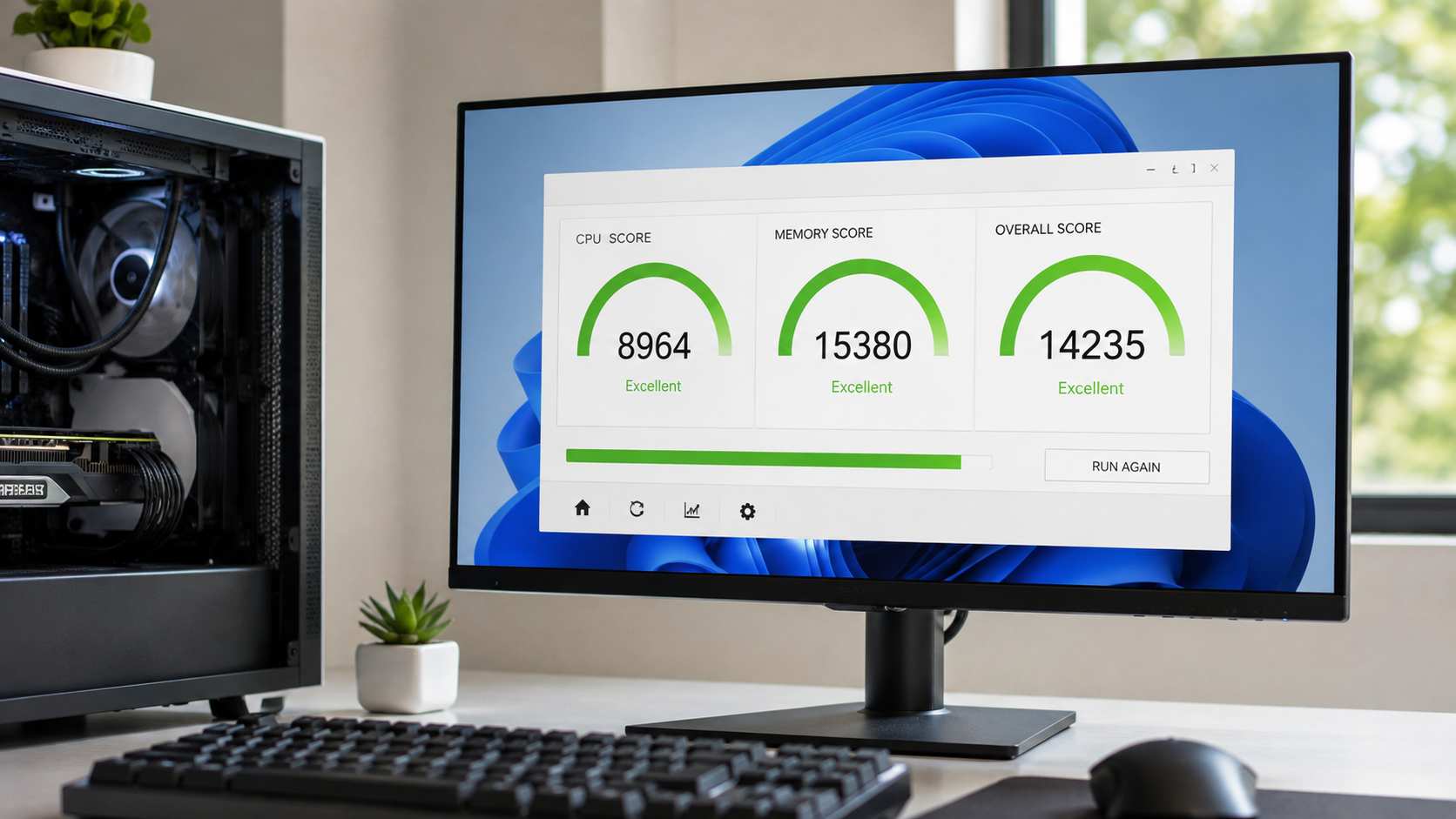
A machine that starts well and gets slower over the first ten minutes, with the fan climbing steadily, is almost certainly overheating. This is one of the more satisfying causes to find, because it is deliberate behaviour rather than a fault, and the remedy is usually physical and cheap.
What thermal throttling is
Processors generate heat in proportion to how hard they work. Every one has a temperature it is designed not to exceed, and built into the chip is a mechanism that reduces its own clock speed when it approaches that limit.
The trade is straightforward: a slower computer now, or a damaged one later. Given the choice, the hardware picks slower every time, and it does so without telling you.
This is why the slowdown has such a distinctive shape. Cold machine, everything fine. Ten minutes of real work, temperature climbs, speed drops. Leave it idle for a while and it recovers, which makes the problem seem intermittent and hard to pin down.
How to tell it is happening
Without extra software, look for the pattern rather than the temperature:
- Quick from cold, slow after a few minutes of use.
- The fan rising to full speed and staying there.
- Hot air from the vents and a hot patch on the underside of a laptop.
- Task Manager showing low processor use while the machine feels slow.
- Fast again after a break, then slow again once you resume.
If you want numbers, most manufacturers supply a free monitoring tool, and there are free general utilities that display processor temperature. Sustained readings above about 90 degrees under load indicate a cooling problem. Brief spikes are normal and not worth worrying about.
Why it happens more as a machine ages
Nothing about the heat produced changes. What changes is the machine’s ability to get rid of it.
- Dust builds up in the fins of the heatsink until air can barely pass through. This is the main cause and it is gradual.
- Thermal paste dries out. The compound between processor and heatsink degrades over years, and heat transfer worsens.
- Fan bearings wear, so the fan spins slower or seizes altogether.
- Vents get blocked by where the machine lives – on a bed, a sofa, a rug, or pushed against a wall.
What actually helps
In order of effort:
- Move it. A laptop needs a hard, flat surface. Most draw air in through the base, and soft furnishings block that completely. A desktop needs a few inches of clearance behind and beside it.
- Clear the vents. Compressed air, short bursts, from outside the machine. Hold the fan still with a cocktail stick so it cannot spin freely, which can damage it.
- Open it up, if you are comfortable doing so. On many laptops the base panel comes off with a few screws, and the mat of dust on the heatsink is often visible and liftable.
- Have the paste replaced. On a machine over five years old this is worthwhile and is a routine job for a repair shop.
- Reduce the load. Fewer browser tabs and fewer background programs mean less heat produced in the first place.
What does not help
Cooling pads that sit under a laptop are largely decorative unless they line up with an intake vent; most simply blow air at the underside of a case. Vacuum cleaners should not be used on the inside of a computer, both for static reasons and because they pull components loose. And software claiming to cool a processor cannot do anything except reduce the load, which you can do yourself.
Why it is worth doing
Beyond speed, heat shortens the life of everything near it, and a battery kept warm degrades noticeably faster than one kept cool. Ten minutes with a can of compressed air, twice a year, is one of the highest returns available on a machine you already own, and it costs less than a takeaway coffee.